

Introduction
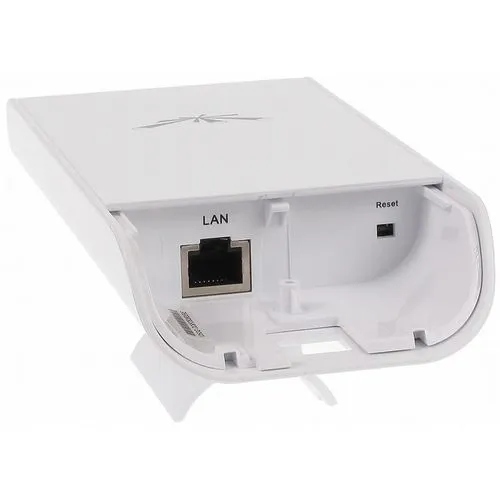
The Ubiquiti NanoStation M5 is a powerhouse for long-range wireless networking. Whether you’re setting up Wi-Fi over a farm, a construction site, or between buildings, the NanoStation delivers strong, stable connections.
In this guide, we’ll show you exactly how to configure your NanoStation M5 — or even M2 — as an Access Point, Repeater, and in Point-to-Point (P2P) mode. We’ll also explain common troubleshooting steps, give you default login details, and provide access to manuals and configuration PDFs.
✅ Good news: You can even configure it from your Android phone!
How to Configure NanoStation M5 as Access Point (Using Android)
You don’t need a PC to set up your NanoStation — just your smartphone.
Step-by-step:
- Power Up
- Connect the NanoStation to power using the POE injector.
- Connect Your Android Device
- Search Wi-Fi networks for the NanoStation SSID (open, no password by default).
- Alternatively, use a USB-to-Ethernet adapter to connect with a cable.
- Login via Browser
- Open your browser and type http://192.168.1.20.
- Username: ubnt | Password: ubnt
- Change Wireless Mode
- Go to Wireless → Set Wireless Mode = Access Point.
- Set Wi-Fi Name and Password
- Name your network (SSID).
- Add strong WPA2 security under Wireless Security tab.
- Set Network Mode
- Under Network tab, set Network Mode = Bridge.
- Save and Apply
Your NanoStation M5 is now broadcasting Wi-Fi just like a traditional router!
How to Set Up NanoStation M5 as a Wi-Fi Repeater
Want to extend Wi-Fi coverage? Here’s how:
Steps:
- Login as before (192.168.1.20).
- Go to Wireless settings.
- Set Wireless Mode to Station WDS.
- Click Select or Scan to find the Wi-Fi network you want to repeat.
- Connect and enter the Wi-Fi password.
- Set Network Mode = Bridge.
- Save and Apply.
✅ Now your NanoStation M5 repeats an existing Wi-Fi network, extending coverage over large areas.
Point-to-Point (P2P) Setup: NanoStation M5 Bridge Connection
If you need to connect two distant buildings wirelessly, NanoStation M5s are perfect.
You’ll need two devices:
- Device A: Set up as Access Point WDS.
- Device B: Set up as Station WDS.
Configure Device A:
- Wireless Mode → Access Point WDS
- Create your Wi-Fi name (SSID).
- Add a strong WPA2 password.
- Network Mode → Bridge.
Configure Device B:
- Wireless Mode → Station WDS
- Scan and connect to Device A.
- Use the same WPA2 password.
- Network Mode → Bridge.
✅ Done!
You now have a high-speed, long-distance wireless bridge (up to several kilometers apart if you have clear line of sight).
NanoStation M5 Default Settings
| Setting | Default Value |
|---|---|
| IP Address | 192.168.1.20 |
| Username | ubnt |
| Password | ubnt |
Tip: Always change your default login credentials after setup for security reasons.
Troubleshooting Common Problems
- Can’t Access 192.168.1.20?
→ Set your Android or PC IP manually to 192.168.1.x (example: 192.168.1.100). - Forgot Password?
→ Hold the reset button for 15 seconds while powered on to reset to factory settings. - Weak Signal?
→ Make sure devices have clear line-of-sight, and try adjusting antennas slightly for best performance.
Download NanoStation M5 Manual & Setup PDF
You can find the official manual here:
👉 NanoStation M5 User Guide PDF
If you want, I can also send a simplified Quick Setup PDF for offline use. (Just ask!)
NanoStation M2 Setup as Access Point
Good news!
The NanoStation M2 setup is identical to the M5 guide above — the only difference is:
- M2 operates on 2.4GHz (better range, more interference).
- M5 operates on 5GHz (faster speed, less interference).
Use the same step-by-step instructions above!
Final Thoughts
The Ubiquiti NanoStation M5 is an incredible tool for farms, warehouses, schools, and even outdoor events. With just a little bit of setup — and maybe an Android phone — you can turn it into an Access Point, Repeater, or P2P bridge and cover large areas with reliable internet.
Always secure your device with a strong password, monitor your signal levels, and don’t forget to back up your configurations once everything is set.


1 Comment
Thanks for sharing. I read many of your blog posts, cool, your blog is very good.