Close Menu
Knickpoint Media
  • Breaking News
  • World News
  • Politics
  • Sports News
  • Business
  • Health
  • Kenya News
  • Education
  • Technology
  • Agriculture
  • Our Culture
  • Real Estate
  • Jobs & Career
  • Lifestyle
  • Entertainment
  • Creative Tips
  • Opinions
  • Environment
  • 18 & Above
  • Travel Insights
  • Human Rights
  • Crime & Security
  • Science & Research
  • The Youths & Tips
  • Religion & Spirituality
  • Finance & Money Tips
Facebook X (Twitter) Instagram
KNICKPOINT
  • About
  • Contact
  • Standards
  • Partner
  • Support
  • Advertise
  • Submit
Facebook X (Twitter) Instagram
Subscribe
  • Kenya
  • News
  • Politics
  • The World
  • Opinions
  • Youths
  • Culture
  • Travel
  • Agriculture
  • Editor’s choice
  • Health
  • Business
  • MORE
    • Creative Tips
    • Money Tips
    • Crime & Security
    • Jobs & Career
    • Human Rights
    • Environment
KNICKPOINT
  • Advertise
  • Support
  • Partner
  • Contact
  • Tracker
  • Submit
  • Standards
  • About
  • Terms
Home • Technology • Complete Guide: Ubiquiti NanoStation M5 Setup as Access Point, Repeater & P2P (2025)
Technology

Complete Guide: Ubiquiti NanoStation M5 Setup as Access Point, Repeater & P2P (2025)

Knickpoint MediaBy Knickpoint MediaApril 26, 20251 Comment4 Mins Read
Share Facebook Twitter Pinterest Copy Link Telegram LinkedIn Tumblr Email WhatsApp
Follow Us
Facebook X (Twitter) Instagram YouTube WhatsApp TikTok RSS
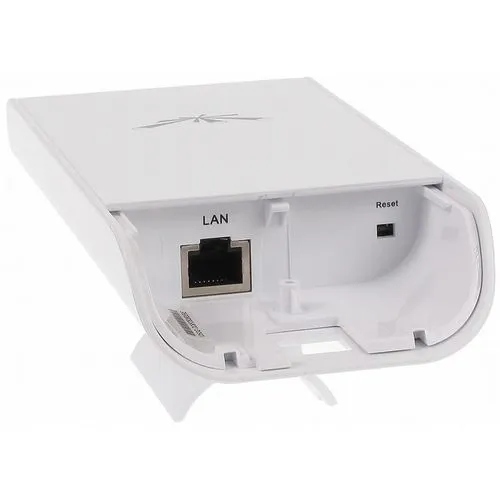
Configure NanoStation M5 point to point
Share
Facebook Twitter LinkedIn Pinterest Email Reddit Telegram WhatsApp Copy Link

Table of Contents

Toggle
  • Complete Guide: Ubiquiti NanoStation M5 Setup as Access Point, Repeater & P2P (2025)
    • Introduction
    • How to Configure NanoStation M5 as Access Point (Using Android)
    • How to Set Up NanoStation M5 as a Wi-Fi Repeater
    • Point-to-Point (P2P) Setup: NanoStation M5 Bridge Connection
    • NanoStation M5 Default Settings
    • Troubleshooting Common Problems
    • Download NanoStation M5 Manual & Setup PDF
    • NanoStation M2 Setup as Access Point
    • Final Thoughts

Introduction

The Ubiquiti NanoStation M5 is a powerhouse for long-range wireless networking. Whether you’re setting up Wi-Fi over a farm, a construction site, or between buildings, the NanoStation delivers strong, stable connections.
In this guide, we’ll show you exactly how to configure your NanoStation M5 — or even M2 — as an Access Point, Repeater, and in Point-to-Point (P2P) mode. We’ll also explain common troubleshooting steps, give you default login details, and provide access to manuals and configuration PDFs.

✅ Good news: You can even configure it from your Android phone!


How to Configure NanoStation M5 as Access Point (Using Android)

You don’t need a PC to set up your NanoStation — just your smartphone.

Step-by-step:

  1. Power Up
    • Connect the NanoStation to power using the POE injector.
  2. Connect Your Android Device
    • Search Wi-Fi networks for the NanoStation SSID (open, no password by default).
    • Alternatively, use a USB-to-Ethernet adapter to connect with a cable.
  3. Login via Browser
    • Open your browser and type http://192.168.1.20.
    • Username: ubnt | Password: ubnt
  4. Change Wireless Mode
    • Go to Wireless → Set Wireless Mode = Access Point.
  5. Set Wi-Fi Name and Password
    • Name your network (SSID).
    • Add strong WPA2 security under Wireless Security tab.
  6. Set Network Mode
    • Under Network tab, set Network Mode = Bridge.
  7. Save and Apply
This Is Related  Science or silence? My battle to question doomsayers about the Great Barrier Reef

Your NanoStation M5 is now broadcasting Wi-Fi just like a traditional router!


How to Set Up NanoStation M5 as a Wi-Fi Repeater

Want to extend Wi-Fi coverage? Here’s how:

Steps:

  1. Login as before (192.168.1.20).
  2. Go to Wireless settings.
  3. Set Wireless Mode to Station WDS.
  4. Click Select or Scan to find the Wi-Fi network you want to repeat.
  5. Connect and enter the Wi-Fi password.
  6. Set Network Mode = Bridge.
  7. Save and Apply.

✅ Now your NanoStation M5 repeats an existing Wi-Fi network, extending coverage over large areas.


Point-to-Point (P2P) Setup: NanoStation M5 Bridge Connection

If you need to connect two distant buildings wirelessly, NanoStation M5s are perfect.

You’ll need two devices:

  • Device A: Set up as Access Point WDS.
  • Device B: Set up as Station WDS.

Configure Device A:

  • Wireless Mode → Access Point WDS
  • Create your Wi-Fi name (SSID).
  • Add a strong WPA2 password.
  • Network Mode → Bridge.

Configure Device B:

  • Wireless Mode → Station WDS
  • Scan and connect to Device A.
  • Use the same WPA2 password.
  • Network Mode → Bridge.

✅ Done!
You now have a high-speed, long-distance wireless bridge (up to several kilometers apart if you have clear line of sight).


NanoStation M5 Default Settings

SettingDefault Value
IP Address192.168.1.20
Usernameubnt
Passwordubnt

Tip: Always change your default login credentials after setup for security reasons.


Troubleshooting Common Problems

  • Can’t Access 192.168.1.20?
    → Set your Android or PC IP manually to 192.168.1.x (example: 192.168.1.100).
  • Forgot Password?
    → Hold the reset button for 15 seconds while powered on to reset to factory settings.
  • Weak Signal?
    → Make sure devices have clear line-of-sight, and try adjusting antennas slightly for best performance.
This Is Related  How Data Recovery Software Works: Why Every Kenyan Needs a Backup Plan Before It’s Too Late

Download NanoStation M5 Manual & Setup PDF

You can find the official manual here:
👉 NanoStation M5 User Guide PDF

If you want, I can also send a simplified Quick Setup PDF for offline use. (Just ask!)


NanoStation M2 Setup as Access Point

Good news!
The NanoStation M2 setup is identical to the M5 guide above — the only difference is:

  • M2 operates on 2.4GHz (better range, more interference).
  • M5 operates on 5GHz (faster speed, less interference).

Use the same step-by-step instructions above!


Final Thoughts

The Ubiquiti NanoStation M5 is an incredible tool for farms, warehouses, schools, and even outdoor events. With just a little bit of setup — and maybe an Android phone — you can turn it into an Access Point, Repeater, or P2P bridge and cover large areas with reliable internet.

Always secure your device with a strong password, monitor your signal levels, and don’t forget to back up your configurations once everything is set.

Configure NanoStation M5 point to point How to configure Ubiquiti NanoStation M5 as access point Android NanoStation M2 setup Access point NanoStation M5 configuration PDF NanoStation M5 default IP NanoStation M5 default password NanoStation M5 manual NanoStation M5 setup as Repeater
Follow on Facebook Follow on X (Twitter) Follow on Instagram Follow on YouTube Follow on WhatsApp Follow on Reddit Follow on RSS
Share. Facebook Twitter Pinterest LinkedIn Email Copy Link Telegram WhatsApp
Previous ArticleUnderstanding DNS: The Backbone of Internet Navigation
Next Article Top Open-Source Operating Systems in 2025: Features, Benefits & Comparisons
Knickpoint Media
  • Website

Knickpoint Media is a dynamic news informer and blogger renowned for his ability to break down complex stories into relatable, thought-provoking narratives. With a passion for delivering authentic and impactful content, he has become a trusted voice in journalism and digital media.

Related Posts

Editoria Web Services: Professional Websites for NGOs, CBOs & Startups

December 6, 2025

Editoria Web Services Review: Is It the Best Web Hosting in Kenya?

November 13, 2025

Vibe Coding in Kenya: How AI Is Redefining Software Development

October 19, 2025

How Data Recovery Software Works: Why Every Kenyan Needs a Backup Plan Before It’s Too Late

October 16, 2025

Free Website Program for Kenyan NGOs | Only KSh 4,000 Hosting Fee

October 12, 2025

1 Comment

  1. бнанс рестраця on November 29, 2025 4:40 am

    Thanks for sharing. I read many of your blog posts, cool, your blog is very good.

    Reply
Leave A Reply Cancel Reply

FOLLOW US
  • Facebook
  • Twitter
  • YouTube
  • WhatsApp
  • TikTok
  • Threads
  • YOU MIGHT LIKE THIS TODAY

Humanity Calls International Grant Program Review: Reported Concerns, Red Flags, and a Public Warning

Kenya Online Court Services: eFiling, ePayment, Case Tracking & Judgments Guide

GHRIS Kenya: Complete Guide to Payslips, Leave & KRA P9 Forms for Public Servants

Isiolo Eco Alliance – Community-Led Environmental Conservation in Kenya

KNICKPOINT MEDIA LATEST

Humanity Calls International Grant Program Review: Reported Concerns, Red Flags, and a Public Warning

How to Start a Business in Kenya with 20k: Top 10 Profitable Ideas

Banking Secrets: How Your Bank Profits & How You Can Too

Hidden Money Rules for Wealth in Kenya | 7 Untold Financial Secrets

OUR CATEGORIES
  • Agriculture
  • Breaking News
  • Business
  • Creative Tips
  • Crime & Security
  • Editor’s choice
  • Education
  • Entertainment
  • Environment
  • Finance & Money Tips
  • Health
  • Human Rights
  • Jobs & Career
  • Kenya News
  • Lifestyle
  • Opinions
  • Our Culture
  • Politics
  • Real Estate
  • Religion & Spirituality
  • Science & Research
  • Sports News
  • Technology
  • The Youths & Tips
  • Travel Insights
  • World News
Knickpoint Media
Facebook X (Twitter) Pinterest Vimeo WhatsApp TikTok Instagram

OUR MAJORS IN NEWS

  • World
  • Politics
  • Culture
  • Business
  • Opinions
  • Technology
  • Science

Company

  • About Knickpoint Media
  • Advertising With Us
  • Our Starndards
  • Our Contacts
  • Our Terms and Conditions
  • Our Privacy Policy
  • Partner With Us
  • Support Our Work

Services

  • Guest Articles
  • Website Maintainance
  • Web Development
  • Art & Authorship
  • Sponsored Articles
  • Work With Us
  • Web Hosting
  • Domain Registration

Subscribe to Updates

Get the latest creative news from FooBar about art, design and business.

© 2026 Knickpoint Media. Designed by Editoria Cloud Systems.
  • Privacy Policy
  • Terms
  • Accessibility

Type above and press Enter to search. Press Esc to cancel.

Accessibility Adjustments

Powered by OneTap

Accessibility Commitment for Knickpoint Media

At Knickpoint Media, we are committed to making our digital presence as accessible and inclusive as reasonably possible for all users, including individuals with disabilities. Our goal is to improve the usability of https://knickpointmedia.co.ke and to support a more accessible experience for everyone, regardless of their abilities or the technologies they use.

Our Approach to Accessibility

We aim to align with the Web Content Accessibility Guidelines (WCAG), which define internationally recognized standards for digital accessibility. While full compliance cannot always be guaranteed, we strive to implement improvements where feasible and regularly review accessibility-related aspects of our website. Accessibility is an ongoing process, and we are committed to improving the experience over time as technologies, standards, and user needs evolve.

Accessibility Features

To support accessibility, https://knickpointmedia.co.ke may utilize tools such as the OneTap accessibility toolbar. This interface provides users with a range of helpful features, including:
  • Adjustable text size and contrast settings
  • Highlighting of links and text for better visibility
  • Full keyboard navigation of the toolbar interface
  • Quick launch via keyboard shortcut: Alt + . (Windows) or ⌘ + . (Mac)
Please note the following:
  • The availability and effectiveness of these features depend on the website's configuration and ongoing maintenance.
  • While we strive to ensure accessibility, we cannot guarantee that every part of https://knickpointmedia.co.ke will be fully accessible at all times. Some content may be provided by third parties or affected by technical constraints beyond our immediate control.

Feedback and Contact

We welcome your feedback. If you experience any accessibility barriers or have suggestions for improvement, please contact us: Email: info@knickpointmedia.co.ke We are committed to reviewing all inquiries and aim to respond within 3–5 business days. If you require assistance accessing any part of this website, we are happy to provide support through alternative channels upon request. Last updated: March 29, 2026
How long do you want to hide the toolbar?
Hide Toolbar Duration
Select your accessibility profile
Vision Impaired Mode
Enhances website's visuals
Seizure Safe Profile
Clear flashes & reduces color
ADHD Friendly Mode
Focused browsing, distraction-free
Blindness Mode
Reduces distractions, improves focus
Epilepsy Safe Mode
Dims colors and stops blinking
Content Modules
Font Size

Default

Line Height

Default

Color Modules
Orientation Modules
Ad Blocker Enabled!
Ad Blocker Enabled!
Aii, sawa sawa bro! Hii site inapata Mukuchu Ya Maintainance through adds manze, So, Kama Unataka Kusupport Knickpoint Media Manze, Disable Hiyo ad blocker. Just straight love! 😄